
hi,
i'm following the tutorial and i'm referring to 2:00 in the video.
i followed the same steps as the instructor. i added the mirror modifier, then selected the car body as the mirror object.
however, when i do this, my tire moves to the center of the car instead of being mirrored to the position of the rear wheel like in the instructor's example.
i'm not sure what i'm doing differently. could you please take a look at the two images and let me know what i might have missed?
instructor's result:

my result:

thank you

Hi Bsam,
It does that because of where the Object's Origin of your (cleverly named) Plane is:
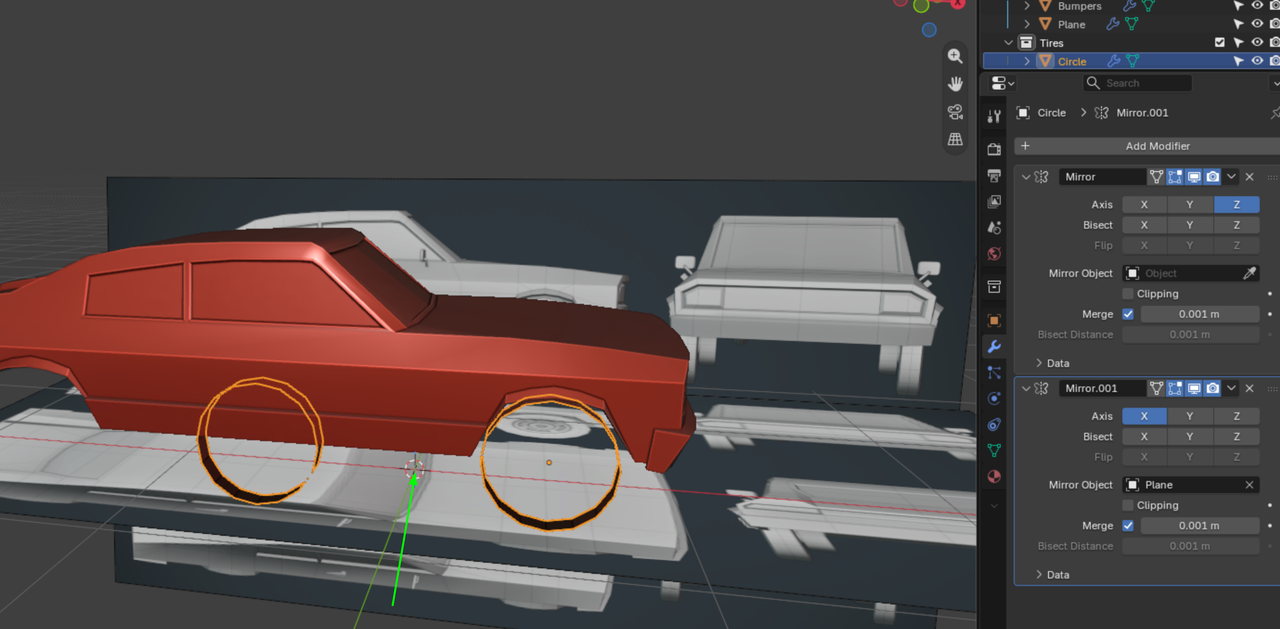
I know it's not visible in your screenshot, but if you Select the Plane and open up your N-Panel, you will see that its X-Location is at 0, or something very close to that. My guess is, that "Plane" is the body of your car and that at some point, you Moved it in Edit Mode (leaving the Origin where it was at that time), while the Instructor moved it in Object Mode (taking the Object's Origin with it). Or maybe, the Instructor said Apply the Scale and you did Apply > All Transforms instead, "just to be sure".
One way to fix this, is to Select both the Wheel (Circle) and the Reference Images and Move them forward (along the X-Axis), until the back wheel matches the Reference. Then Deselect Everything (ALT+A), Select the Car and Bumper (Body Collection) and Move those in Edit Mode to match the Wheels and Reference.
An Alternative way, would be to Select (only) the "Plane" and (in Object Mode) go to Options and enable Affect > Only Origins:
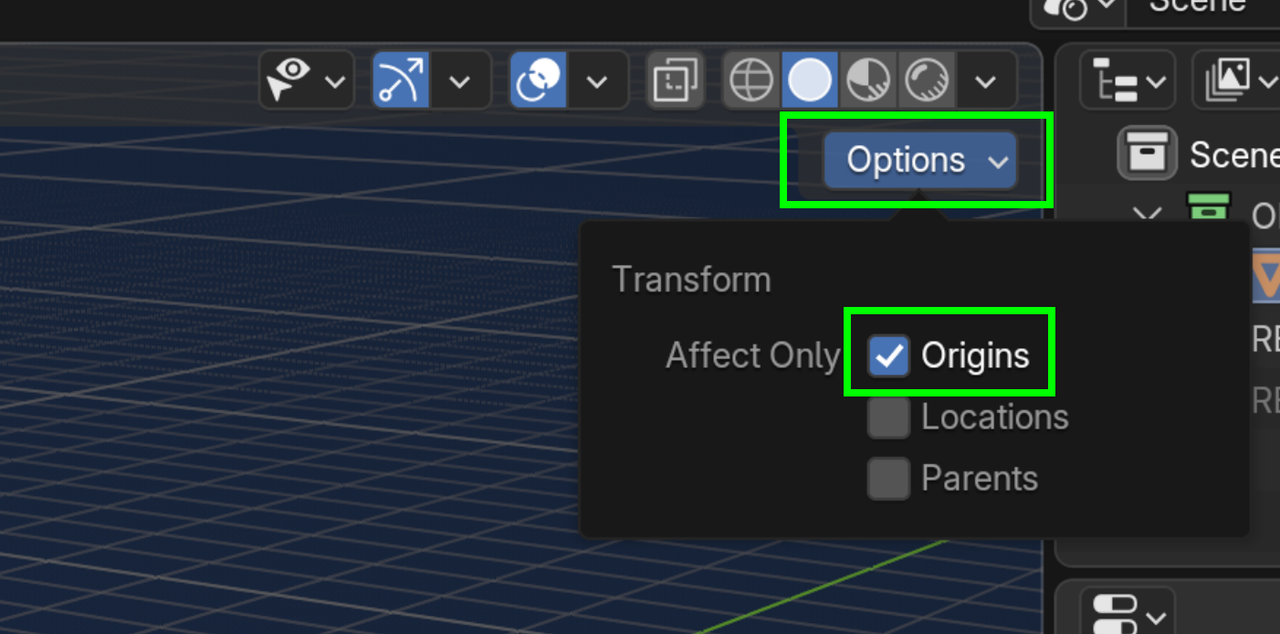
Then G, X to Move it backwards along the X-Axis until the wheel is where it should be. Don't forget to disable the Affect Only Origins again!
